
QR Codes for Event Photos: A Printing Checklist
Use this checklist before printing table cards, invitations or a welcome sign.
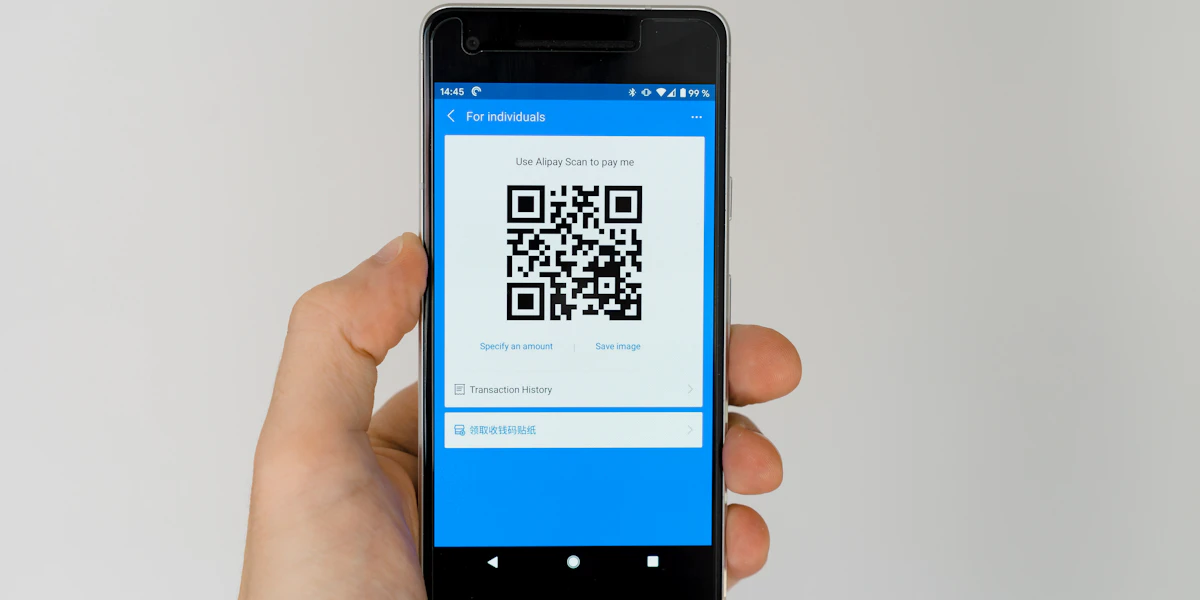
Start with the guest link
A QR image does not create a photo gallery by itself. Create your event or choose the existing album that should receive photos, then copy the link intended for guests. An organizer dashboard link may ask people to sign in or open the wrong screen.
Open the destination on a second phone that is not signed in as the organizer. Check that guests can reach the intended event and contribute in the way you expect. For a full event setup, use the QR photo-sharing guide.
Generate the image and keep the destination stable
Paste the guest URL into the free QR code generator. The tool lets you set the foreground and background colors and download a PNG. Use a dark code on a light background with clear contrast.
The generated image encodes the URL you enter. Editing the URL in the generator creates a different code; it does not update cards you have already printed. Confirm the event and link before ordering stationery. If your guest destination changes later, test whether the original address still gets people to the right place.
Design around the code
Leave the clear border around the QR pattern. Keep text, logos and decorative shapes outside it. Add a short instruction beside the code, such as “Scan to share your photos from tonight,” so guests know why to open it.
The current generator exports a 400-pixel PNG. Check the result at the size you intend to print instead of stretching it across a large poster. If you need a much larger sign, test that output carefully or obtain artwork prepared for that size. This tool does not currently offer SVG or PDF downloads.
Test the finished card, not just the screen preview
- Print one copy using the paper and approximate size you plan to use.
- Scan it on more than one phone, at the distance guests will stand.
- Try it under the venue's lighting. Move glossy cards if reflections obscure the code.
- Follow the link and add a test photo. A successful scan alone does not confirm the event works.
- Put a readable guest link or an instruction for getting help beside the code.
If scanning fails, increase contrast, restore the clear border and try a larger printed code. If scanning succeeds but the page does not open, check the URL and the phone's internet connection.
Check availability before the event
The image can remain scannable while its destination becomes unavailable. Check the event's access period, try the link again before guests arrive and keep a copy of the guest link for follow-up messages. For an outdoor venue, the outdoor photo-sharing plan includes a connection check and a rain plan.
Common questions
Does the QR generator create a photo gallery?
No. It creates a QR image for the URL you enter. Create your event or album first, then use its guest link so the code opens the right place.
Which file format can I download?
The current About Last Night QR generator downloads a 400-pixel PNG. It has foreground and background color controls, but does not offer SVG or PDF exports.
Can I change a code after printing it?
The printed image keeps the URL it originally encoded. Generating a new image does not update an old print. If you change the destination, check whether the original URL still leads guests to the right place.